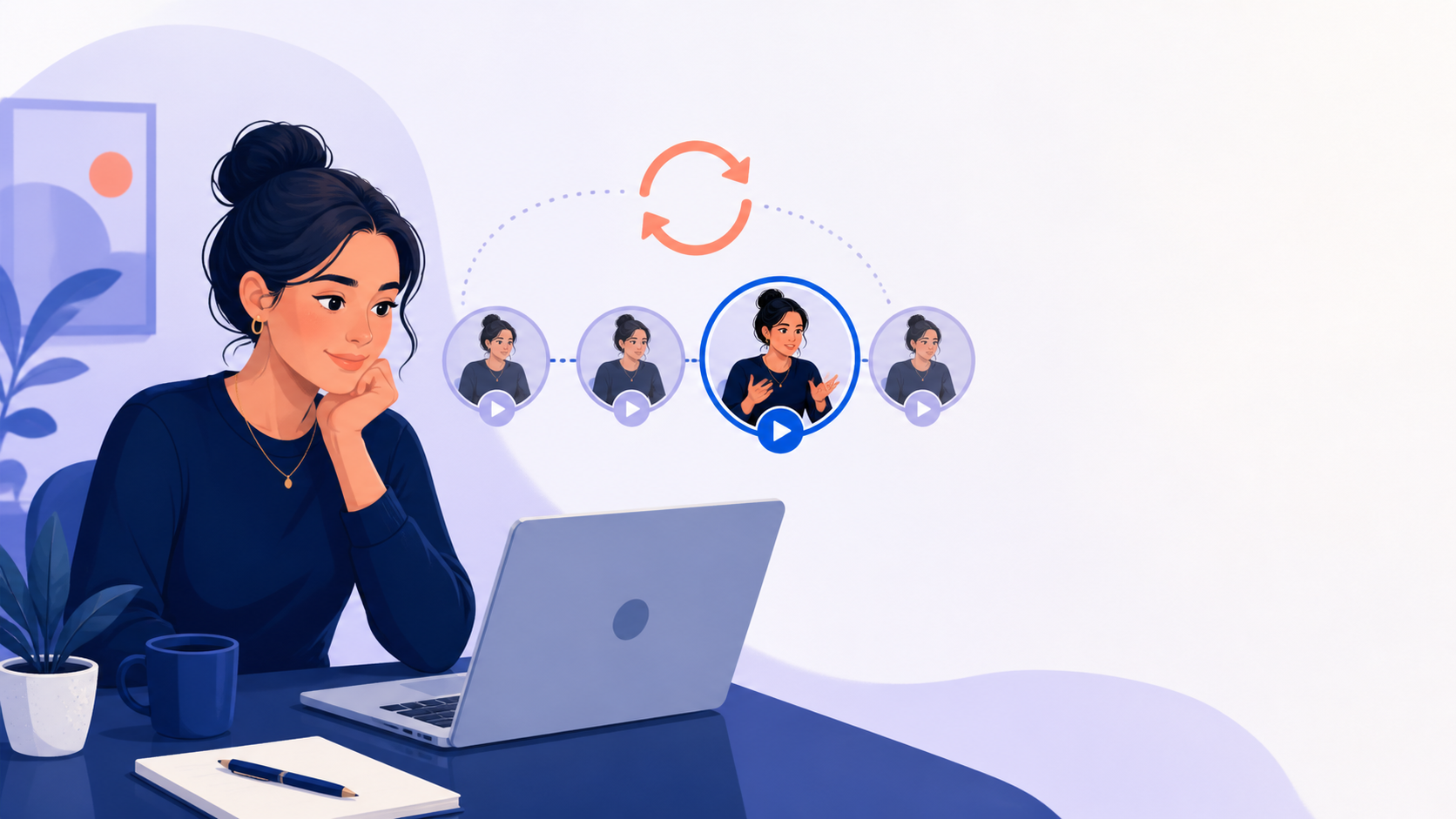
How to Test Your Camera and Microphone for a Spark Hire One-Way Interview
Candidate Falcon
Editorial Team
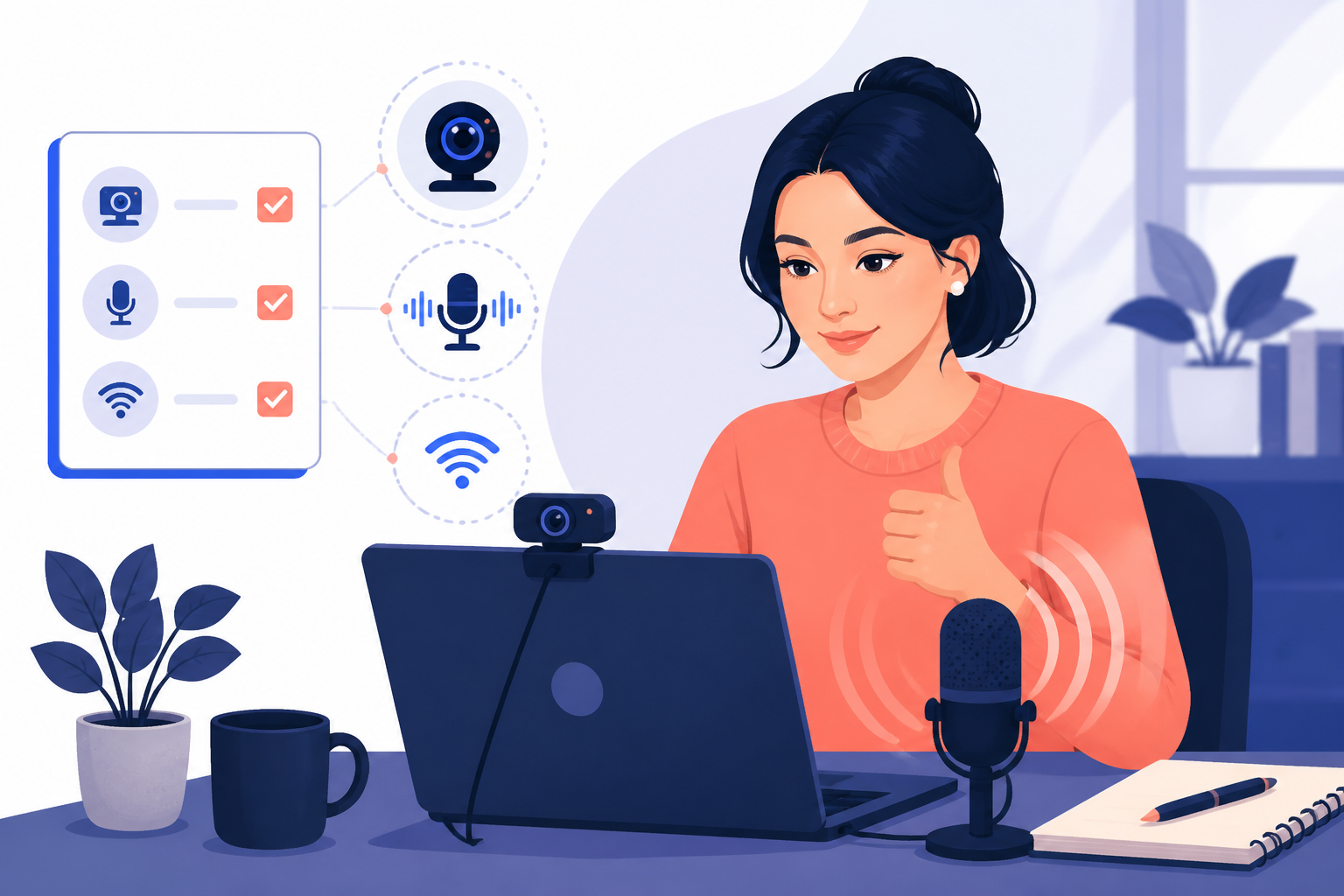
A Spark Hire invitation should not turn into a race against a camera permission pop-up. Before the real questions begin, Spark Hire takes you through a setup and practice stage. Use it properly. It is where you confirm that the platform can see your camera, hear your voice, and play back a recording that looks and sounds like you expect.
The short answer is this: open the invitation early, allow browser access to the camera and microphone, make a practice recording, and watch it with the sound on. If either device is not working, fix that before you start the interview questions.
Spark Hire’s own candidate guide says the walkthrough checks your camera, microphone, and connection. It also lets you record a sample answer and review it before the actual interview. The employer controls the questions and deadline; you control whether your setup is ready when the first question appears.
What Spark Hire checks before the interview
Accepting a Spark Hire invitation does not usually start the scored interview immediately. You first move through a short walkthrough. Spark Hire confirms your email, explains the process, and gives you a chance to prepare your equipment.
During setup, expect to:
- select or confirm the camera Spark Hire will use
- select or confirm the microphone it will use
- allow the browser to access both devices
- check your connection
- record a practice video
- review that practice recording before choosing to begin
That practice video matters more than a green camera preview. A preview can show your face while your microphone is muted, using the wrong input, or picking up a noisy room. Playback tells you what the hiring team is likely to receive.
Do not rush through this stage because you are worried that clicking the invitation will start the clock. The purpose of the walkthrough is to let you test first. Read the screens, then use the sample recording to check the full experience.
A five-minute Spark Hire camera and microphone checklist
Set aside a quiet five minutes before you plan to complete the interview. If the invitation gives a deadline, do this well before the final hour. A problem that takes two minutes to solve on Tuesday becomes much more stressful when the deadline is ten minutes away.
1. Use the device you will interview on
Use the same laptop or desktop, browser, webcam, headphones, and microphone you plan to use for the recorded answers. Switching devices after a successful test can create a new permission problem.
If an employer’s invitation specifies a device or browser, follow that instruction over general advice. The invitation is the source of truth for your interview.
2. Close anything else using your camera or microphone
Close Zoom, Microsoft Teams, Google Meet, FaceTime, Discord, screen-recording software, and other apps that might have claimed the camera or microphone. Spark Hire specifically recommends closing other applications that use those devices.
Then refresh the Spark Hire page and try the device check again. If you have just connected a USB device, refresh after connecting it rather than assuming the page will notice it automatically.
3. Allow camera and microphone permissions
When your browser asks whether Spark Hire can use your camera and microphone, choose Allow. If you accidentally chose Block, the platform cannot record you until you change the permission.
Look for the camera or lock icon near the address bar. Open the site permissions and set Camera and Microphone to Allow, then reload the page. The wording differs between browsers, but the fix is the same: the Spark Hire site needs permission for both devices.
Do not grant access to a site you do not recognize. Check that you are on the Spark Hire link supplied in the employer’s invitation before changing permissions.
4. Choose the right camera and microphone
If your computer has more than one device, check the selected inputs in Spark Hire’s setup screen. This matters when you have a built-in microphone plus a headset, a monitor with a webcam, or an old Bluetooth device still connected.
For the camera, choose the one positioned at eye level and showing your face clearly. For the microphone, speak at your normal interview volume and watch for an input meter or other sign that the system hears you. If the meter does not react, select a different microphone and try again.
5. Record and review a sample answer
Record a short practice answer, then play it back all the way through. Spark Hire says you can review and retake the practice video before moving to the interview questions. Take advantage of that option.
Check four things:
- Can you hear every word at a normal volume?
- Is the video in sync with the sound?
- Is your face visible without a bright window behind you?
- Does the recording capture interruptions, typing, traffic, or notification sounds?
A sample answer does not need to be impressive. Say your name, the role you are interviewing for, and one sentence about why you are interested. The point is to test a real recording, not rehearse your best answer yet.
How to fix a Spark Hire camera problem
If the camera preview is black, frozen, or missing, work through the simplest checks first. Avoid changing five settings at once. You want to know which fix worked.
Check the physical basics. Open any privacy shutter on your webcam. If it is an external camera, make sure its cable is secure. On a laptop, confirm that the operating-system camera privacy setting has not disabled access for your browser.
Close competing apps. Quit video-call and recording apps, then reload Spark Hire. A camera can normally be used by only one application at a time.
Check browser permission. Reopen the site permissions from the address bar. Set the camera to Allow, reload the page, and choose the correct device in Spark Hire’s setup screen.
Reconnect the device. For a USB webcam, unplug it, reconnect it, and refresh the page. For a Bluetooth device, check that it is connected before reopening the interview link.
Restart the browser or computer. A restart is not glamorous, but it clears stuck devices and background processes. Do this before the deadline rather than after you have started a real response.
If the camera works in another app but not Spark Hire, the likely issue is browser permission or a browser extension. Disable extensions that block scripts, protect privacy aggressively, or control camera settings for the session, then retry in a supported browser.
How to fix a Spark Hire microphone problem
Microphone trouble is often less obvious than camera trouble because you can see yourself and assume the recording is fine. Always listen to the practice playback.
Start with the microphone selector in Spark Hire. Pick the device you are actually using, speak normally, and look for the input meter. If it stays still, try the built-in microphone or unplug and reconnect the external device.
Next, check the operating system’s sound settings. Confirm that your chosen microphone is not muted and that its input level is not set extremely low. If you are using a headset, make sure its mute switch is off. Some headphones expose separate audio profiles, so reconnecting them can make the correct microphone appear in the device list.
Then check browser access. The Spark Hire site needs microphone permission even if your computer settings are correct. Change the site setting to Allow and reload the page after changing it.
If playback is very quiet, move closer to the microphone rather than shouting. A normal speaking voice in a quiet room is better than a raised voice that distorts. If the recording has an echo, take off one audio device at a time, close nearby devices playing sound, and record another sample.
Make the practice recording useful
Put your light in front of you or face a window. A bright light behind your head can turn your face into a shadow. Raise your laptop on stable books or a stand until the camera is near eye level. You do not need a staged background; a tidy, quiet corner is enough.
Silence phone and desktop notifications. Close email, messaging apps, and unrelated browser tabs. Tell people nearby that you need an uninterrupted block. These are ordinary checks, but they make it easier to focus on the questions rather than on whether a sound will interrupt you.
Use your playback to spot one practical change. Fix the biggest issue and record one more sample.
What to do if something fails during the real interview
First, follow the instructions on screen and the support contact information in your invitation. Do not keep clicking record or reload repeatedly if the platform tells you to take a specific step.
If the problem prevents you from continuing, note what happened: the time, question number if shown, and the error message. Take a screenshot only if doing so will not interrupt the session or violate the employer’s instructions. Contact the employer or Spark Hire support using the channel provided in the invitation and explain the technical problem plainly.
Do not assume a technical issue creates an extra take or extends the deadline. Those decisions belong to the employer. That is why an early technical check is so useful: most problems are easier to solve before the interview questions begin.
Technical setup is only the first practice step
Once your camera and microphone work, use the remaining preparation time to practise the recorded format. A one-way interview asks you to choose an example, speak clearly to a camera, and finish before the time limit. That feels different from rehearsing silently.
Our Spark Hire interview questions guide gives you ten prompts worth practising. If your invitation shows multiple takes, read the Spark Hire retakes guide before you decide to use one on a minor stumble.
Candidate Falcon gives you a place to rehearse Spark Hire-style questions, record as many practice answers as you need, and review AI-powered feedback before the real interview. The aim is simple: make the camera and timer familiar, so your attention can stay on giving a clear answer.
Spark Hire camera and microphone FAQs
Does Spark Hire test my camera and microphone before the interview?
Yes. Spark Hire’s candidate walkthrough includes a setup stage for your camera, microphone, and connection. You can also record and review a practice video before you begin the actual interview questions.
What if Spark Hire cannot access my camera or microphone?
Check that the Spark Hire site has browser permission to use both devices, close other apps that may be using them, select the correct device, and refresh the page. Restart your browser or computer if the problem continues.
Can I test my equipment without starting the real interview?
Spark Hire’s walkthrough and practice recording are designed for this. Opening the invitation does not normally start the interview questions straight away, but read the screens and your employer’s instructions carefully before proceeding.
Why can I see myself but not hear audio in the practice recording?
The camera and microphone are separate devices. Choose the correct microphone in the setup screen, confirm browser permission, make sure the device is not muted, and replay a new practice recording with sound on.
Should I use headphones for a Spark Hire one-way interview?
Use them if they make your audio clearer and you have tested them in the same browser. They are not required. A reliable built-in microphone in a quiet room is usually better than unfamiliar headphones used for the first time on interview day.
Test the technology early, listen to one practice recording, and make the room quiet enough that your answer comes through. Then spend your energy on the interview itself. Start practising with Candidate Falcon before your Spark Hire deadline.
Related Articles
Spark Hire vs Talview: What Candidates Actually Experience, and How to Prepare for Either
Read more
Spark Hire vs VidCruiter: What Candidates Actually Experience, and How to Prepare for Either
Read more