Best Lighting and Camera Setup for HireVue One-Way Video Interview

Luca from Candidate Falcon
Editorial Team
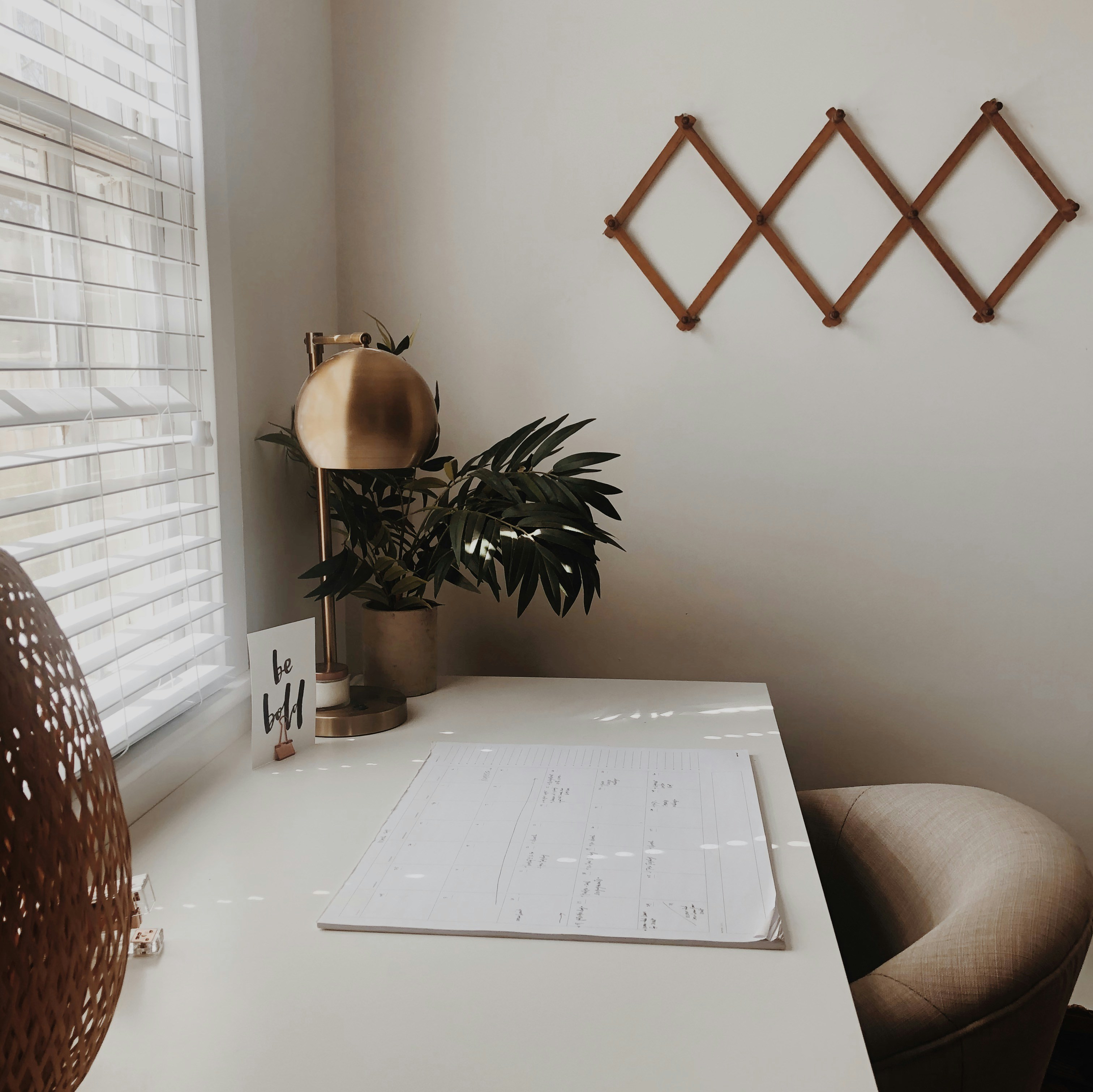
To achieve the best lighting and camera setup for a HireVue one-way video interview, position yourself in a well-lit area with soft, indirect frontal lighting, ensuring your face is clearly visible and evenly illuminated. Your camera should be at eye-level, capturing your head and shoulders, with a clean, distraction-free background. Start practicing your HireVue responses today to combine professional visuals with strong answers.
Optimizing your visual presentation is crucial for a HireVue one-way video interview because it directly impacts a recruiter's first impression. A clear, well-lit, and professional appearance conveys preparedness, attention to detail, and a serious approach to the opportunity, allowing your personality and qualifications to shine through without visual distractions.
Why Your Lighting and Camera Setup Matters for Hiring Assessments
In a HireVue one-way interview, you're not just answering questions; you're often being assessed on communication presence, professionalism, and even non-verbal cues. Poor lighting can cast shadows, obscure facial expressions, or make you appear less engaged. An incorrectly positioned camera can convey disinterest or a lack of professionalism. Investing a few minutes in a proper setup shows respect for the opportunity and helps recruiters focus on your answers, not your technical woes.
Practical Guidance: Achieving Your Best Look
Follow these steps to ensure you present your best self during your HireVue interview:
1. Lighting: Illuminate Your Strengths
Good lighting is the single most impactful factor for a professional video presence. The goal is to illuminate your face evenly without harsh shadows or bright glare.
- Frontal Lighting (The Golden Rule): The primary light source should be in front of you, facing you directly. This illuminates your face, reduces shadows, and makes your eyes bright.
- Natural Light is Best: Position yourself facing a window. This provides soft, even, and flattering light. Avoid having a bright window behind you, as this will backlight you and make you appear as a silhouette.
- Artificial Light Alternatives: If natural light isn't available or sufficient, use a lamp. Place it directly in front of you, slightly above eye level. A desk lamp with a white lampshade or a ring light positioned behind your monitor are excellent options.
- Avoid Backlighting: Never have a bright light source (like a window or strong overhead light) directly behind you. This will make your face dark and hard to see.
- Avoid Overhead Lighting: Direct overhead lights can create harsh shadows under your eyes and nose, making you look tired or severe.
- Soften Harsh Lights: If your light source is too bright or harsh, diffuse it. You can drape a thin white sheet or tablecloth over a lamp (ensure it's not a fire hazard), or bounce the light off a white wall or ceiling.
- Check for Glare: If you wear glasses, adjust your light source or slightly tilt your head to avoid glares that can obscure your eyes.
2. Camera Positioning: Frame Your Professionalism
Your camera angle and position dictate how you appear on screen. The aim is to create a natural, engaging eye-level perspective.
- Eye-Level Camera: Your camera should be at the same height as your eyes. This creates a more natural conversational feel, as if you're talking to another person face-to-face.
- Elevate Your Laptop/Monitor: Use books, a sturdy box, or a monitor stand to raise your device to the correct height.
- Optimal Framing: Position yourself so your head and shoulders are clearly visible, with some space above your head (approximately a few inches). You shouldn't be too close (just your face) or too far away (showing your entire torso or more).
- Centred in Frame: Ensure you are centred horizontally within the camera's view. This provides balance and makes you the natural focal point.
- Stable Camera: Use a stable surface. Avoid holding your device, as shakiness is unprofessional and distracting. If using a phone, secure it in a stand.
- Look at the Camera (Mostly): While answering, make an effort to look directly into the camera lens. This simulates eye contact and makes you appear engaged. It's okay to occasionally look at your screen, but the majority of your time should be spent addressing the lens.
3. Background: Minimize Distractions
Your background should be clean, tidy, and free of anything distracting. It's an extension of your professional presentation.
- Simple and Uncluttered: A plain wall (neutral colour) is ideal. If that's not possible, choose an area with minimal visual clutter – no dirty dishes, unmade beds, or personal items that might be deemed inappropriate.
- Professional, Not Personal: Avoid backgrounds with overly personal items like political posters, explicit artwork, or highly distracting patterns. A bookshelf with neatly arranged books or a plant can add a touch of personality without distracting.
- Good Depth: Try to have some distance between you and your background. A shallow depth of field (where the background is slightly blurred) can help you stand out, but this is less critical than simply having a clean background.
- Check for Reflections: Be mindful of reflective surfaces in your background (mirrors, glass frames) that might show private details or create light glare.
Common Mistakes to Avoid
- Too Much Light from Behind: The 'halo' or 'silhouette' effect makes you hard to see.
- Harsh Overhead Lighting: Creates unflattering shadows on your face.
- Low Camera Angle: Looking down at the camera creates a double chin effect and can make you appear less authoritative.
- Too Close or Too Far: Either an uncomfortable close-up or a distant, tiny figure.
- Distracting Backgrounds: Visible clutter, busy patterns, or inappropriate items steal attention from you.
- Unstable Camera: Jerky movements from a handheld device are unprofessional.
- Not Testing Your Setup: Assuming everything will work perfectly is a recipe for disaster.
Quick Practice Routine (10-15 minutes)
Before your actual HireVue interview, perform this quick check:
- Set the Scene (5 minutes): Find your interview spot. Arrange your lighting (window or lamp). Elevate your camera to eye level. Clear your background.
- Record a Test Video (5 minutes): Use your phone or computer's webcam to record a short (30-60 second) video of yourself answering a simple question (e. g., "Tell me about yourself"). Imagine you're in the actual interview.
- Review and Adjust (5 minutes): Play back the video. Critically assess:
- Lighting: Is your face evenly lit? Are there harsh shadows? Is there any glare?
- Camera Angle/Framing: Is your camera at eye level? Are you centred? Is there space above your head?
- Background: Is anything distracting? Is it professional?
- Audio (Bonus Check): Is your voice clear and at an appropriate volume? (Though not the focus of this guide, good audio is equally important).
Make any necessary adjustments based on your review. Repeat the recording and review if needed.
Practice your interview responses combined with proper lighting and camera setup for the best results. Explore more HireVue preparation resources to build complete confidence.